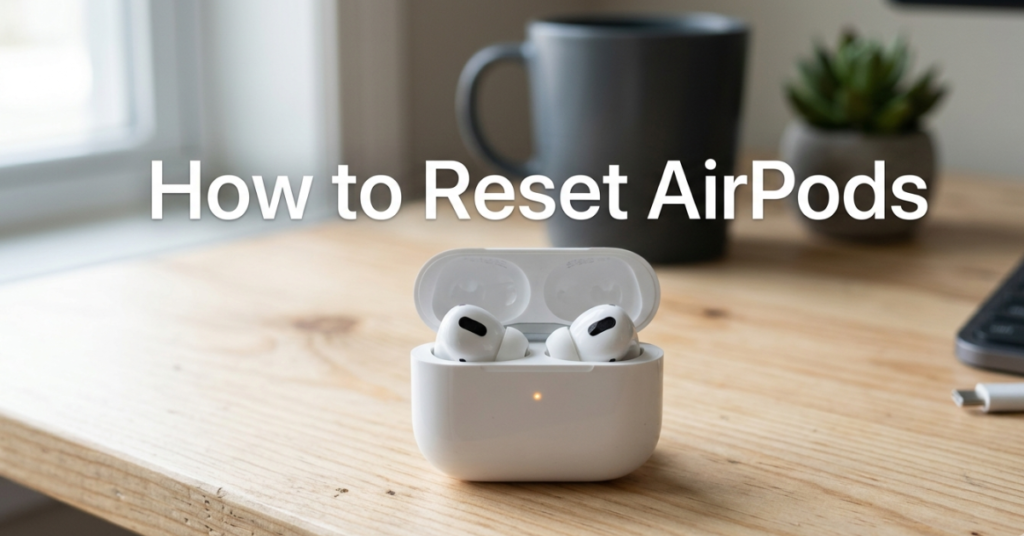

If your earbuds are acting up, not connecting properly, or you just bought a second-hand pair, learning how to reset AirPods can save you a lot of frustration.
Whether you’re dealing with how to reset AirPods Pro, how to reset AirPods Max, or even trying to figure out how to reset AirPods from previous owner, this guide breaks everything down in a simple, practical way.
Let’s walk through each model and fix those connection issues step by step.
Why You Might Need to Reset AirPods
Before jumping into the steps, it helps to know when a reset is actually necessary for AirPods.
Common reasons include:
- AirPods not connecting to your device
- Audio cutting out or syncing issues
- Switching to a new phone
- Buying second-hand AirPods
- One earbud not working
A reset basically wipes the connection and gives your AirPods a fresh start.
How to Reset AirPods (All Models)
This method works for most versions, including standard AirPods and newer models.
Step-by-Step Reset Process:
- Place AirPods inside the charging case
- Close the lid and wait 30 seconds
- Open the lid
- Press and hold the setup button on the back
- Hold until the light flashes amber, then white
- Reconnect to your device
That’s it—you’ve completed a full reset.
How to Reset AirPods Pro (All Generations)
If you’re searching how to reset AirPods Pro, the process is almost identical but slightly more sensitive due to the noise control features.
For AirPods Pro:
- Put both earbuds in the case
- Keep the lid open
- Hold the back button for about 15 seconds
- Wait for amber → white light
This works for AirPods Pro (1st and 2nd generation).
How to Reset AirPods Max
Over-ear headphones need a different method.
For AirPods Max:
- Charge your AirPods Max
- Press and hold:
- Noise Control button
- Digital Crown
- Hold for 15 seconds
- Wait until LED flashes amber, then white
This resets all settings and removes pairing.
How to Reset AirPods 2, AirPods 3, and AirPods 4
If you’re wondering about how to reset AirPods 2, AirPods 4, or newer models:
For AirPods (2nd generation):
- Same method: hold setup button until light changes
For newer models (AirPods 3 & 4):
- Process is identical
- Only difference is improved connectivity and faster reset response
How to Reset AirPods Pro 2 and AirPods Pro 3
For newer Pro versions like Air Pods Pro 2, the reset is even smoother.
For AirPods Pro (2nd generation):
- Place in case
- Open lid
- Hold back button for 15 seconds
- Wait for white flash
This fixes most firmware and Bluetooth issues instantly.
How to Reset AirPods from Previous Owner
Buying used AirPods? This step is important.
Why it matters:
If AirPods are still linked to another Apple ID, they may not connect properly.
What to do:
- Reset Air Pods using the steps above
- Ask previous owner to remove them from their Apple ID
- Forget device from Bluetooth settings
- Re-pair with your phone
Without removing the old Apple ID, full access may be limited.
How to Reconnect After Reset
Once you complete the reset:
- Open the case near your iPhone
- Wait for popup animation
- Tap Connect
- Follow on-screen instructions
Now your AirPods are fresh and ready to use again.
Common Problems After Reset
Even after learning how to reset Air Pods, issues can still happen.
Try these fixes:
- Ensure Bluetooth is ON
- Charge AirPods fully
- Restart your phone
- Update iOS firmware
- Clean charging contacts
FAQs
How to reset Air Pods easily?
Place them in the case and hold the setup button until the light flashes amber and white.
How to reset AirPod Pro?
Press and hold the back button of the case for about 15 seconds.
How to reset AirPod Max?
Hold the Noise Control button and Digital Crown until the LED flashes.
How to reset AirPod from previous owner?
Reset them and ensure the previous owner removes them from their Apple ID.
Why won’t my AirPod reset?
Check battery level, clean charging contacts, or try a different device.
Does resetting AirPods delete everything?
Yes, it removes all paired devices and settings.
Conclusion
Now you know exactly how to reset AirPods, whether you’re using standard models, Pro versions, or AirPod Max.
A simple reset can fix most Bluetooth issues, improve performance, and help you connect fresh devices without stress.
If your AirPods still act up after resetting, it may be time to check for firmware updates—or consider Apple support for deeper troubleshooting.